IPTV Smarters Pro not working is one of the most common things people type into Google on a match night, and the frustrating part is that the app itself almost never tells you what is actually wrong. “Loading…” that never ends, a black screen with sound, a login that worked yesterday and is suddenly “invalid” — they all look like the same problem, and they are not.
This guide works through the twelve fixes in the order that solves the most problems fastest. Start at the top and stop when it works. Most people are watching again before fix number five.
Quick takeaways
- IPTV Smarters Pro is a player only. It has no channels and no central server — when it stops working, the cause is your line, your connection or the app on your device.
- First test: does the same login work on your phone over mobile data? That one check tells you whether to look at your provider or at your home internet.
- Most login errors are typos: a capital letter, a trailing space, or a server URL without
http://and the port. - A black screen with channels listed is a player problem. Change the stream format or the decoder before anything else.
- If it only fails during big matches, it is server load, not your settings.
First, find out where the problem is
Before you touch a single setting, spend two minutes working out which side of the connection is broken. There are only three places it can be: the line (your subscription and the provider’s server), the network (your router, Wi-Fi and internet provider) and the device (the app and the hardware it runs on).
- Install Smarters on your phone, turn Wi-Fi off and log in over mobile data. If it plays, your line is fine and the problem is at home — jump to fixes 6 to 9.
- If it fails on mobile data too, the problem is the line or the login — start with fixes 1 to 3.
- If it plays on the phone over home Wi-Fi but not on the TV, the problem is that one device — go to fixes 4, 5, 10 and 11.
That split saves more time than any other step in this guide, because it stops you reinstalling an app to fix a router, or restarting a router to fix a typo.
The error messages and what they actually mean
| What you see | Most likely cause | Go to |
|---|---|---|
| “Invalid username or password” / “Authorization failed” | Typo, or the line is expired or not active yet | Fix 1 and 2 |
| “Max connections reached” | Another device is already streaming on your line | Fix 3 |
| Channels listed, black screen when you open one | Stream format or decoder | Fix 4 and 5 |
| Endless “Loading…” at login | Wrong server URL or port, or an internet-provider block | Fix 1 and 8 |
| Plays, then freezes every few minutes | Wi-Fi, bandwidth or server load | Fix 6, 7 and 12 |
| Works on mobile data, not on home Wi-Fi | DNS or internet-provider block | Fix 8 |
| TV guide says “No information” | EPG not loaded or time-shifted | Fix 9 |
| App closes itself or freezes on the menu | Cache, storage or an old app version | Fix 10 and 11 |
Fixes 1–3: login and account problems
Illustration
1. Re-enter the login by copy and paste
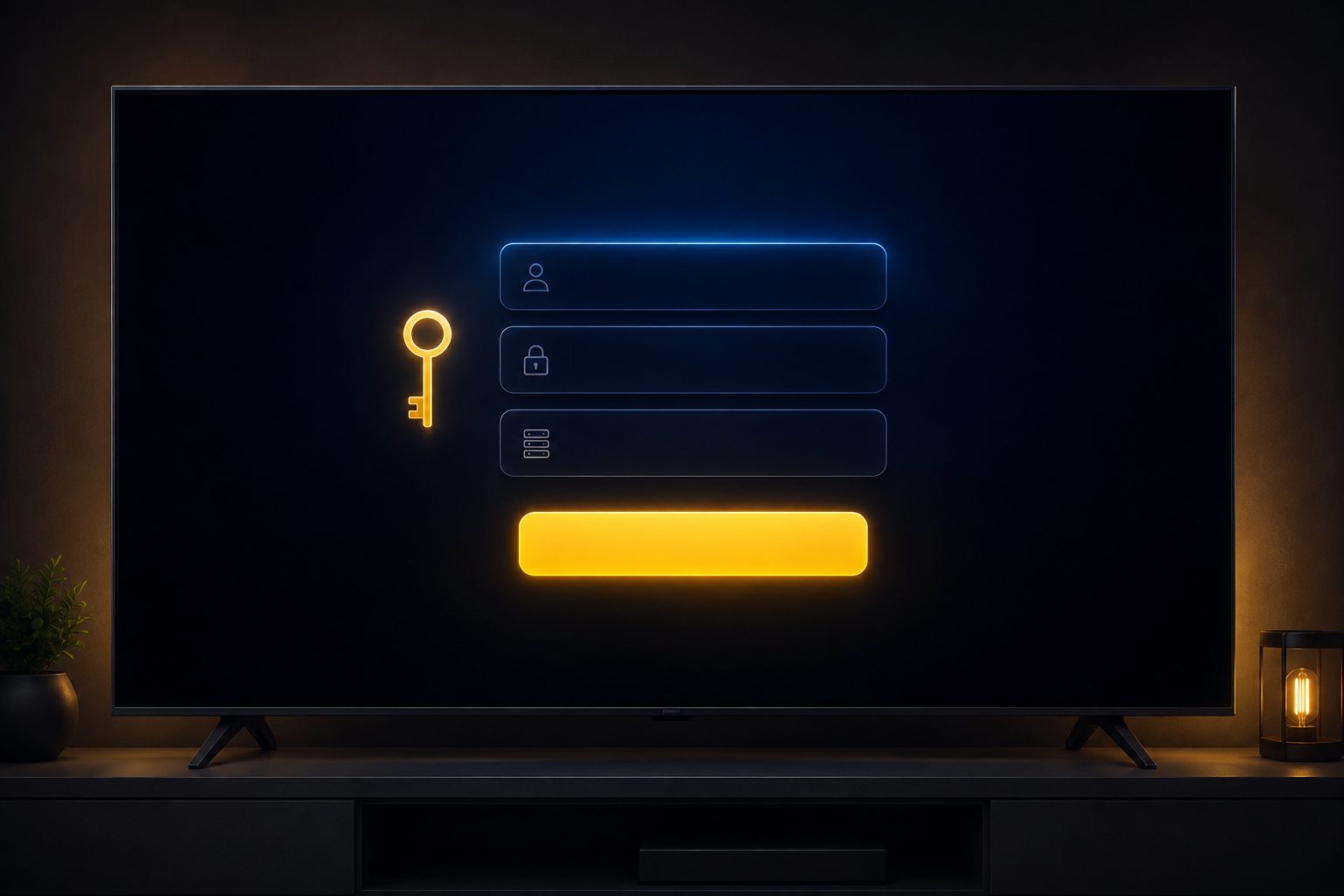
The Xtream Codes login in Smarters needs three values, and the app is unforgiving about every one of them:
- Username and password are case-sensitive.
John123andjohn123are two different accounts. Phone keyboards love to capitalise the first letter for you. - Watch for a trailing space. Copying a password out of a message often grabs the space after it. The app sends that space, and the server rejects it.
- The server URL needs its scheme and port. It usually looks like
http://line.example.com:8080. Leaving offhttp://, typinghttpswhen your line useshttp, or dropping:8080all produce a failed login or an endless loading screen. - Do not paste the full M3U link into the URL field. The Xtream login wants the server address only, not the long
get.php?username=…link. If you only have that link, the server, username and password are all inside it — see our M3U playlist URL guide for how to read it.
The full list of failure causes is in IPTV username and password explained. In practice, deleting the saved profile and adding it again by copy and paste fixes most “it worked yesterday” logins that are not an expiry.
2. Check the line is active and not expired
Smarters shows the expiry date of your line on its home screen after you log in. If the date has passed, nothing else in this guide will help — the server will refuse the login until the line is renewed. If you have just ordered and the login fails, the line may simply not be activated yet; give it the few minutes your provider quoted, then ask them to confirm the status rather than retyping the password ten times.
3. “Max connections reached”
Every IPTV line allows a fixed number of streams at the same time. If the line allows one and somebody is already watching on the bedroom Firestick, the living-room TV gets this message. Close Smarters completely on the other device — not just the channel, the whole app — and wait about a minute, because the server takes a moment to notice that a stream has stopped.
If this happens every evening, the fix is not technical: your household watches on more screens than the plan allows. Our plans count screens differently — 1 on the short plans, 2 on the 1 year plan, 3 on the 2 year plan and 5 on lifetime — and we explain how to pick in how many devices one IPTV subscription covers.
Fixes 4–5: black screen and “playback error”
If the channel list loads but nothing plays, the login and the line are fine. The stream is reaching your device; the player just cannot handle it in its current form.
4. Change the stream format
In Smarters go to Settings → Stream Format. The options are usually Default, MPEGTS (.ts) and HLS (.m3u8). If you are on Default, try HLS first, then MPEGTS. Some servers and some TVs simply get on better with one format than the other, and this single switch fixes a surprising number of black screens and channels that start and stop after a few seconds.
5. Switch the decoder or the player
While a channel is open, the player menu lets you switch between hardware (HW) and software (SW) decoding. Hardware decoding is faster and smoother, but cheap Android boxes and some older TVs struggle with certain streams in hardware mode. Software decoding uses more processing power but plays almost anything. Try the other one.
If that does not help, go to Settings → Player Selection (or External Players) and set VLC as the player for live TV. VLC is ugly but extremely tolerant of odd streams. If a channel plays in VLC and not in the built-in player, you have found your fix.
Fixes 6–9: buffering, blocks and the network
Illustration
6. Test the speed on the device, not on your phone
Your phone next to the router is not your Firestick behind the TV. Run a speed test on the streaming device itself (Smarters has one built into its settings on most versions; on a Firestick you can also use a browser). As a rough guide you want a steady 10 Mbps for HD, 15–20 for Full HD and 25 or more for 4K, per screen. Stability matters more than the headline number: a steady 30 Mbps beats a 300 Mbps line that drops out every few minutes.
7. Fix the Wi-Fi, then restart properly
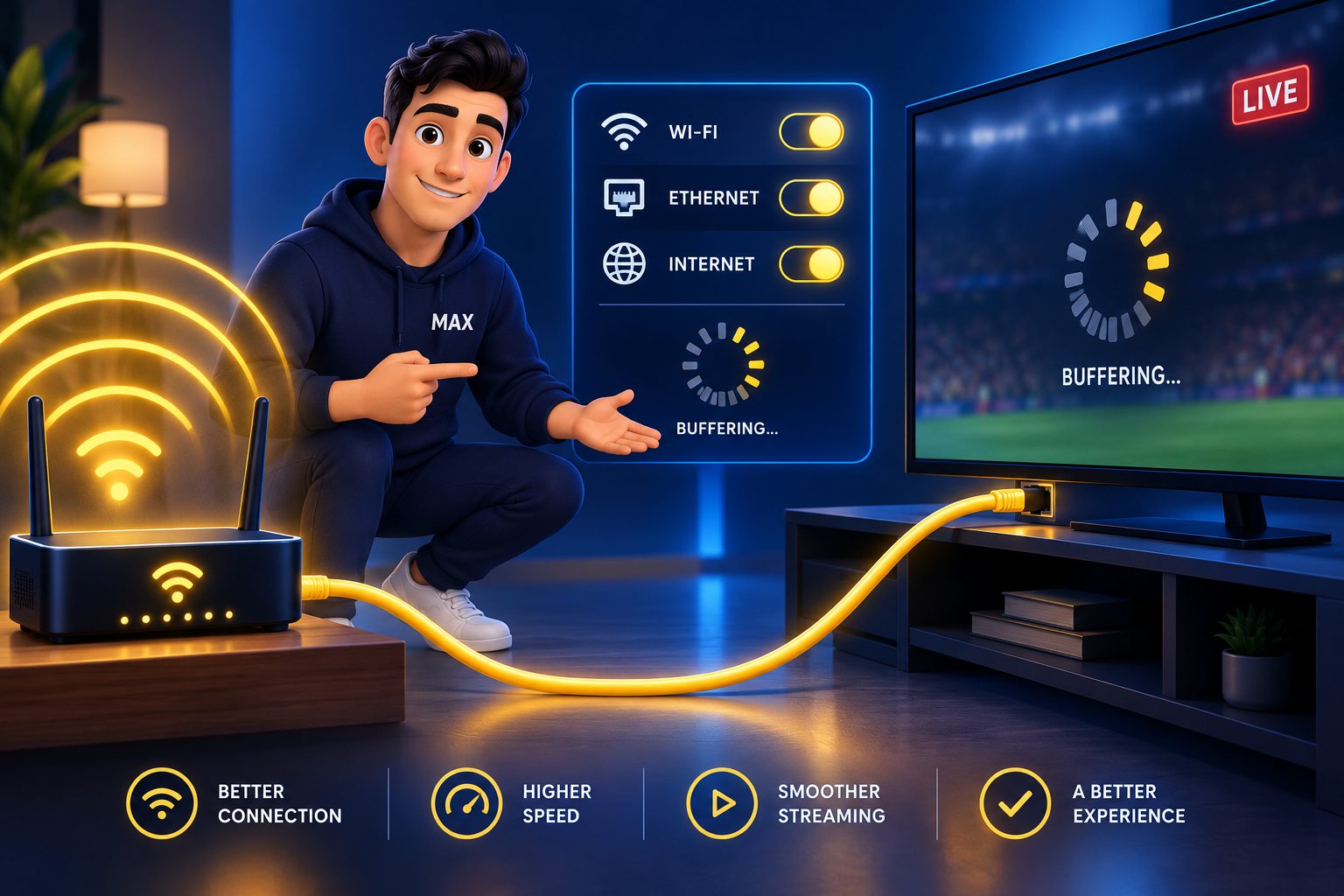
- Use Ethernet if you can. A cable, or a cheap Ethernet adapter for a Firestick, removes the single biggest cause of buffering.
- On Wi-Fi, use 5 GHz rather than 2.4 GHz, and keep the router out of the TV cabinet.
- Restart in the right order: unplug the router for 30 seconds, plug it back in, wait until it is fully up, then restart the streaming device. Pressing a button on the TV menu is not the same as cutting the power.
- Drop to FHD during busy evenings. A 4K stream that buffers is worse than a Full HD stream that does not.
8. Change the DNS (the fix for “works on mobile data, not at home”)
Some internet providers block or slow down the server addresses that IPTV services use, often more aggressively during big sporting events. The giveaway is that the same login plays on mobile data but loads forever or fails on home broadband.
The cheapest fix is to stop using your provider’s DNS. On the device’s network settings (or better, on the router for the whole house) set the DNS to a public resolver such as Cloudflare (1.1.1.1) or Google (8.8.8.8). That alone clears many blocks. If it does not, a VPN on the device is the next step — but try DNS first, because a VPN adds a hop and can introduce its own buffering.
9. Reload the TV guide
Channels that play but show “No information” in the guide are an EPG problem, not a streaming one. Use the reload/refresh option on the Live TV screen or in Settings to download the guide again, and check the EPG time shift if the programmes are an hour or two out. We cover every guide problem in what is EPG in IPTV.
Fixes 10–12: the app and the device
Illustration
10. Clear the cache
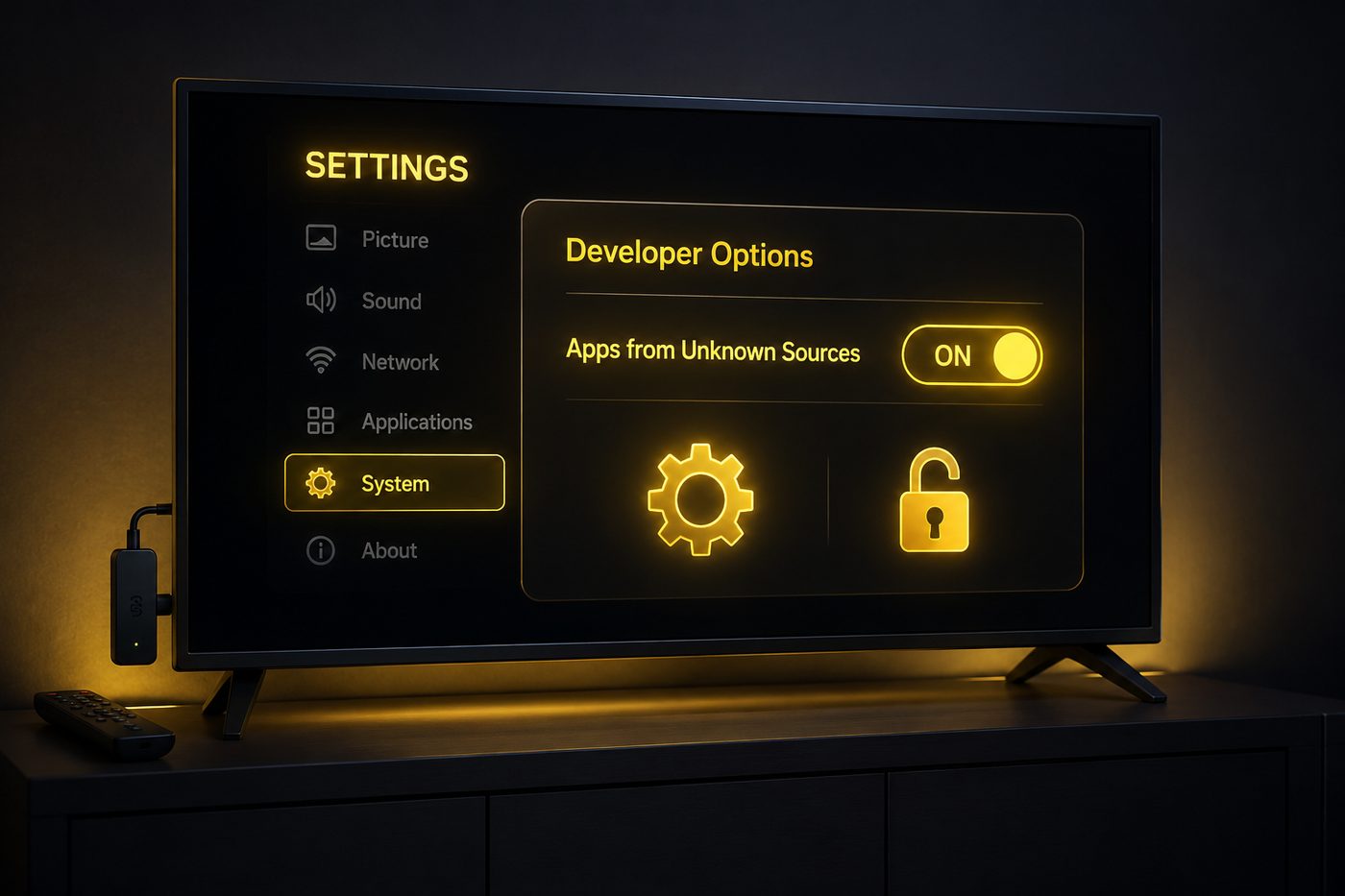
On Android TV, Firestick and Android phones: Settings → Applications (or Apps) → Manage installed applications → IPTV Smarters Pro → Clear cache. This keeps your login and removes the temporary files that grow with every channel list and guide download. If the app freezes on its home screen or closes itself, this is the first thing to do.
Only use Clear data if clearing the cache changed nothing — it resets the app completely, including your saved login.
11. Update or reinstall the app
Old builds of Smarters break when servers or Android versions move on. On a Firestick, where Smarters is usually installed through the Downloader app, updating means installing the current version over the old one. If you reinstall, have the three login details written down first. Also check the device’s free storage: a Firestick with less than about 500 MB free starts to stutter in every app, not just this one. The full Firestick walkthrough is in how to install IPTV on Firestick.
Two related things worth checking while you are there: the device’s date and time should be set automatically (a wrong clock breaks secure connections and shifts the guide), and Smarters’ automatic refresh of channels and EPG on start-up should be on, so a provider-side change to the line-up reaches your app without a manual reload.
12. Recognise when it is the provider
If you have worked through everything above and the channels still fail — especially if it happens across devices, on mobile data as well as Wi-Fi, and mostly at peak times — the problem is the server, not you. An oversold provider runs fine on a quiet Tuesday and collapses at kick-off on Saturday. No setting on your side fixes that.
When you contact support, send the things that let them fix it on the first reply: the device and app version, the exact error text or a screenshot, the channel name, the time it happened, and whether it fails on mobile data too. “It doesn’t work” gets you a list of questions; those five details get you an answer.
How to stop it happening again
- Keep your login saved somewhere outside the app, so a reinstall takes two minutes instead of a support ticket.
- Put the main TV on Ethernet and leave the Wi-Fi for phones.
- Set a public DNS on the router once, for the whole house.
- Match the plan to the number of screens your household actually uses at the same time.
- Clear the app cache every few weeks on low-storage devices.
- Test a provider at peak time before you commit to a long plan — that is what our 24-hour free trial is for.
And if you set Smarters up from scratch and want the clean, current walkthrough rather than the fixes, our complete IPTV Smarters Pro setup guide covers every device.
Frequently asked questions
If it worked yesterday and nothing changed on your side, check three things in this order: whether your subscription has expired (the expiry date is on the app’s home screen), whether another device is using your connection, and whether the same login works on your phone over mobile data. If it works on mobile data but not on home Wi-Fi, your internet provider or router is the problem, not the app.
Usually a typo: a capital letter, a space copied at the end, or a server URL missing its http:// or port number. Copy and paste each field instead of typing it. If the details are definitely right, the line may have expired or not been activated yet — ask your provider to confirm the status.
The stream is reaching the app but the player cannot decode it. Change the stream format in Settings (try HLS, then MPEGTS), switch the built-in player between hardware and software decoding, or select VLC as an external player. One of those three fixes nearly every black screen.
IPTV Smarters Pro is only a player — it has no channels of its own and no central server that can go down for everyone. When nothing plays, the problem is your line, your provider’s server, your internet connection or the app version on your device.
Run a speed test on the device itself, move it to Ethernet or 5 GHz Wi-Fi, restart the router, and lower the quality to FHD instead of 4K. If buffering only happens during big matches, the provider’s server is overloaded and no setting on your side will fully fix it.
Your line is already streaming on as many screens as your plan allows. Close the app completely on the other device and wait a minute before trying again. If several people genuinely need to watch at once, you need a plan with more screens.
Clear the cache first; it keeps your login and fixes most freezes and crashes. Reinstall only if clearing the cache did nothing, and have your username, password and server URL ready before you do, because a reinstall wipes them.
Not normally. A VPN only helps when your internet provider blocks or throttles IPTV traffic — the sign is that the line works on mobile data but not at home. Try changing your DNS first; it fixes many of the same blocks without slowing the connection.
Keep reading
Install, log in and configure Smarters on every device.
The six typos behind almost every rejected login.
Why the TV guide shows “No information” and how to fix it.
How the get.php link is built and why playlists fail to load.
What “max connections” means and how many screens you need.
A clean install is sometimes the fastest fix.
Related reading
What an IPTV M3U playlist URL is, how the get.php?username=&password=&type=m3u_plus link is built, and how to…
Where the credentials come from, what the server URL and M3U link each do, and the…