Learning how to install IPTV on a Firestick is easier than most people expect — no jailbreaking, no technical skills, just five short steps. The Amazon Firestick is the most popular way to watch IPTV because it’s cheap, plugs into any TV’s HDMI port, and runs the best player apps. This guide takes you from a blank Fire TV to live channels in under ten minutes.
You’ll need three things: a Firestick plugged in, a stable internet connection, and your ipplaytv login (the username, password and server URL we send after you order a plan). Ready? Let’s go.
Quick takeaways
- You install IPTV on Firestick using the free Downloader app — no jailbreak needed.
- IPTV Smarters Pro is the most popular player; log in with Xtream Codes.
- The whole process takes about 10 minutes and only needs to be done once.
- Stuck? Our support team can walk you through it live on chat.
What is IPTV, and how does it work on a Firestick?
IPTV (Internet Protocol Television) simply means your channels arrive over your internet connection instead of a cable line or a satellite dish. Your Firestick is a tiny computer that plugs into your TV’s HDMI port; once you install an IPTV player app and enter your login, that app pulls the live channels and on-demand movies straight from the provider’s servers and plays them on your TV. There’s nothing to physically connect beyond the stick itself — no coax cable, no box from the cable company, no engineer visit.
The Firestick is the most popular device for this because it’s cheap, it fits any TV with an HDMI port, and it runs the best IPTV apps like IPTV Smarters Pro and IBO Player Pro. That combination — low cost, wide compatibility and great apps — is why “how to install IPTV on Firestick” is one of the most common streaming questions out there.
What you’ll be able to watch
Once your login is in, the app fills up with your full ipplaytv line-up: 100,000+ live channels including sports, news, entertainment, kids and international, plus a 290,000-title library of movies and series on demand. A built-in 7-day EPG guide shows what’s on now and next, exactly like a traditional TV box — except everything’s in one place and it costs a fraction of cable. On a 4K Firestick and a solid connection, supported channels play in crisp 4K.
Which Firestick do you need for IPTV?
Good news: every Firestick runs IPTV. The newer models just give you a smoother picture and snappier menus. Here’s the quick version:
| Model | Best for | Max quality |
|---|---|---|
| Fire TV Stick Lite | Budget setups, second TVs | 1080p HD |
| Fire TV Stick 4K | Most people | 4K |
| Fire TV Stick 4K Max | Heavy use, fastest menus | 4K |
If you’re buying new, the 4K Max is the sweet spot — it has the most memory, so IPTV apps stay quick even with a huge channel list. But if you already own any Firestick, don’t rush out to replace it; the steps below are identical on all of them.
Before you start
Make sure your Firestick is set up with your Amazon account and connected to Wi-Fi (25 Mbps or more is ideal for 4K). Have your ipplaytv login details handy — we send them by email and chat right after your order.
AI illustration (see prompt)
Step 1 — Allow app installs
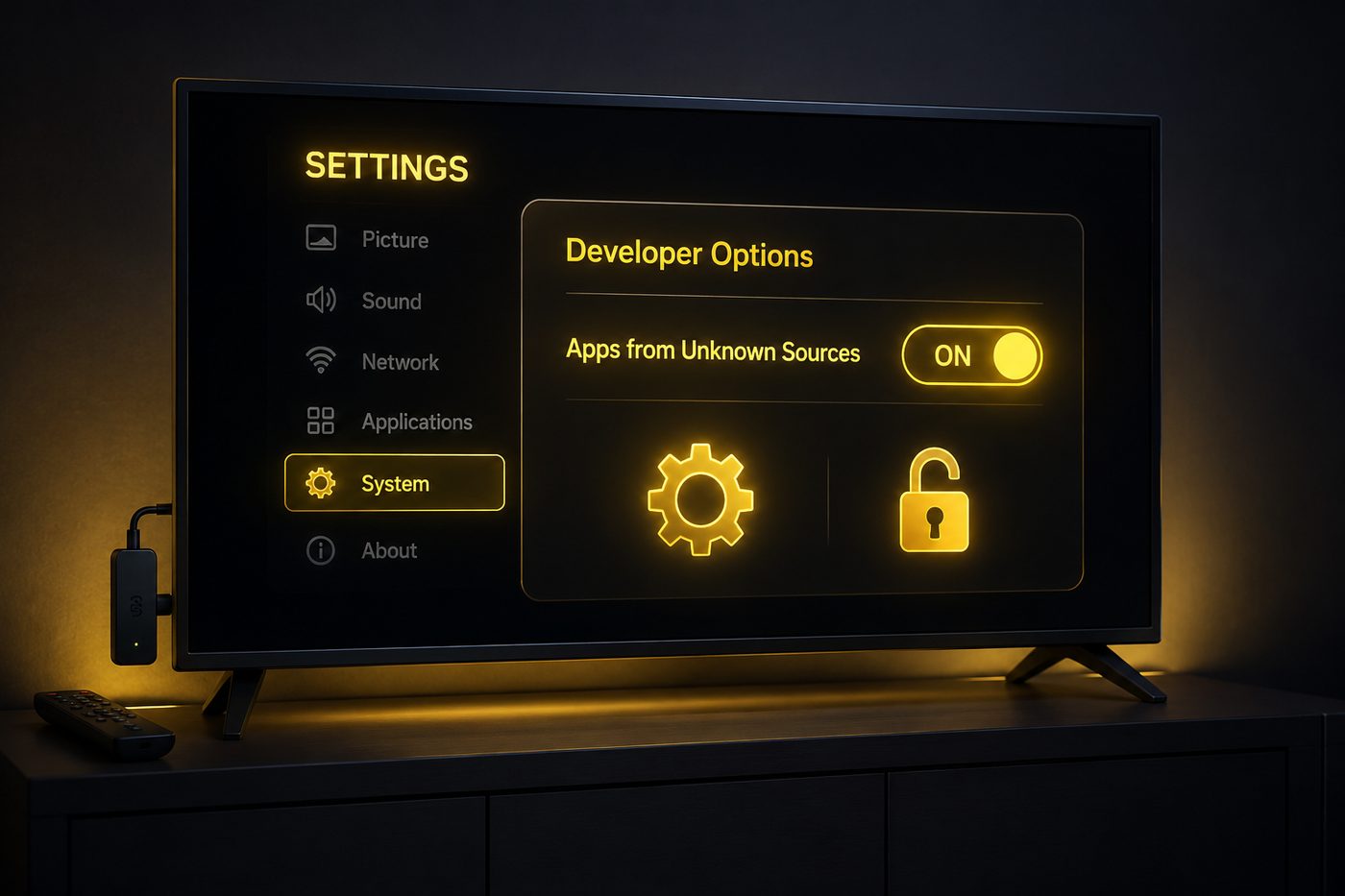
From the Fire TV home screen, go to Settings → My Fire TV → Developer Options, then turn on Apps from Unknown Sources. If you don’t see Developer Options, open Settings → My Fire TV → About and click your device name seven times to unlock it.
Step 2 — Install the Downloader app
Back on the home screen, hold the search icon and type Downloader. Select the orange Downloader app, install it, open it, and allow the permissions it asks for. This free app lets you install IPTV players that aren’t in the Amazon store.
Step 3 — Install IPTV Smarters Pro
In Downloader’s address bar, type the official IPTV Smarters link we send you and press Go. When the file downloads, click Install, then Open. IPTV Smarters Pro is the most popular player — clean layout, a proper TV guide, and it works perfectly with ipplaytv.
AI illustration (see prompt)
Step 4 — Log in with your details
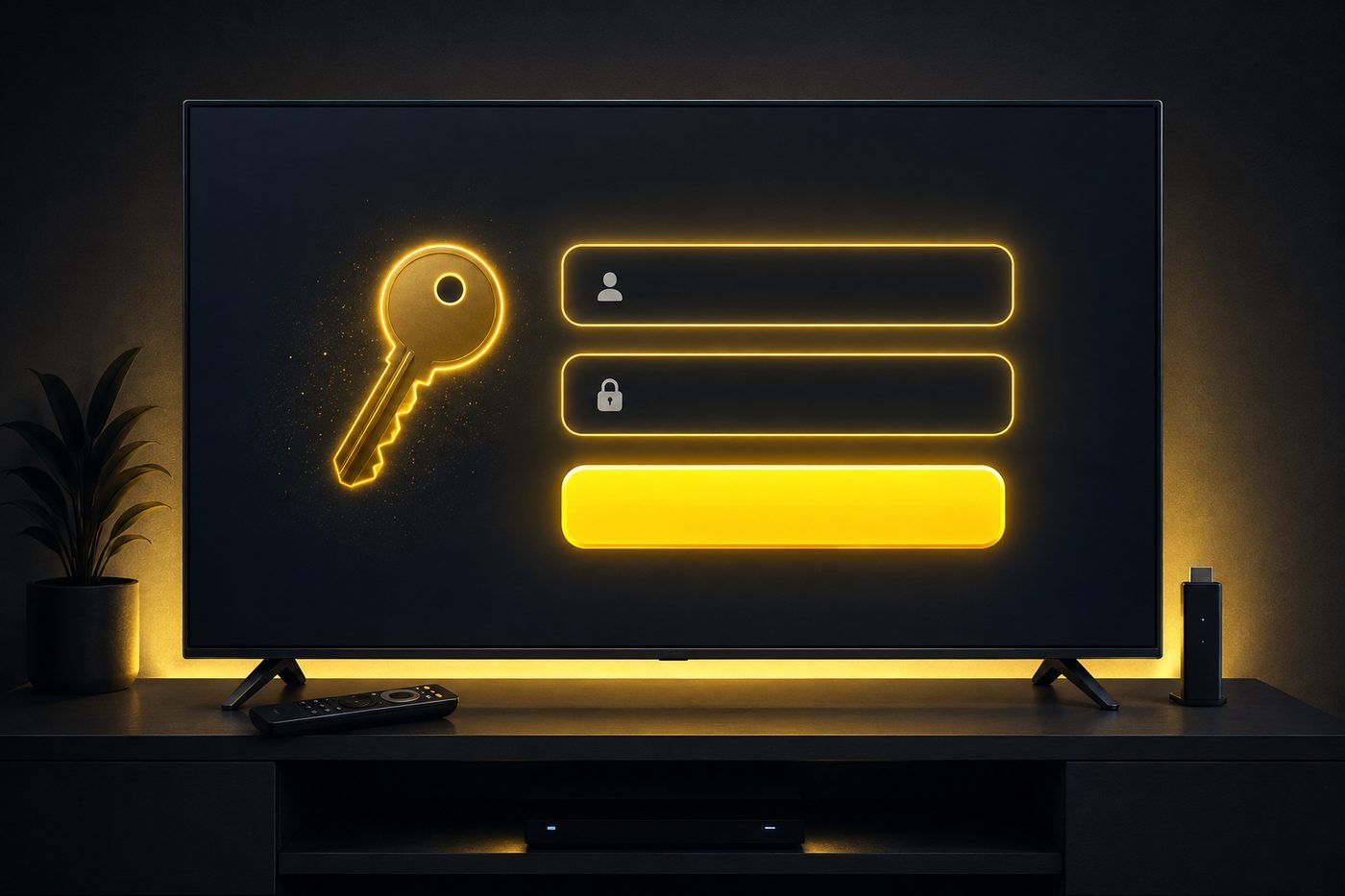
Open IPTV Smarters Pro and choose Login with Xtream Codes API. Enter any name you like, then type the Username, Password and Server URL from your ipplaytv activation message. Tap Add User.
Step 5 — Start watching
That’s it. Your full line-up — 100,000+ live channels, 290,000 movies and series, and the 7-day TV guide — loads straight in. Pick a channel and you’re streaming in 4K.
Prefer a different app? Install IBO Player Pro instead
IPTV Smarters Pro is the most popular choice, but some people prefer IBO Player Pro — it’s just as easy. In the Downloader app, paste the IBO Player link we send you, press Go, then Install and Open. The app will show a Mac address and a device key on screen. Send us both on chat, we add your playlist to it, and when you reload the app your channels appear. Either app works with ipplaytv, so pick whichever layout you like best. Both are also covered on our full setup page.
Get the best picture quality on your Firestick
A few small tweaks make a big difference to how IPTV looks and feels on a Firestick:
- Use 5GHz Wi-Fi or Ethernet. The 5GHz band is faster and less crowded than 2.4GHz. Even better, a cheap Ethernet adapter for the Firestick gives you a rock-solid wired connection for live sports.
- Match your TV’s resolution. In Fire TV Settings → Display & Sounds, set the resolution to Auto or your TV’s native 4K so nothing is being downscaled.
- Clear the app cache occasionally. If things feel sluggish after heavy use, clearing the player’s cache in Fire TV settings restores that fresh-install speed.
- Restart weekly. A quick reboot clears memory and keeps the stick snappy — the same trick that fixes most “it got slow” complaints.
How to update or reinstall your IPTV app
Side-loaded apps don’t always update themselves through the Amazon store, so every now and then it’s worth grabbing the latest version. To update, just open the Downloader app again, re-enter the same link we sent you, and install over the top — your login stays saved. To reinstall from scratch (handy if the app is misbehaving), go to Settings → Applications → Manage Installed Applications, select the IPTV app, choose Uninstall, then repeat the Downloader steps from earlier. It takes two minutes and clears up the vast majority of glitches.
If you ever get a new Firestick, you don’t need a new subscription — your ipplaytv login works on any device. Just run through the same five steps on the new stick and you’re back up and running.
AI illustration (see prompt)
Troubleshooting quick tips
- App won’t install? Double-check “Apps from Unknown Sources” is ON for Downloader specifically.
- Login failed? Re-enter the server URL exactly, including http:// and the port number.
- Buffering? Restart the app and check your Wi-Fi. A wired adapter or 5GHz Wi-Fi helps a lot.
- Still stuck? Message our support — we set up Firesticks every day and can guide you live.
Firestick IPTV problems and how to fix them
Almost every issue people hit falls into one of a few buckets. Here’s how to clear the most common ones yourself:
“The app won’t install”
This is nearly always the unknown-sources setting. Go back to Settings → My Fire TV → Developer Options and make sure Apps from Unknown Sources is ON specifically for the Downloader app. Then re-enter the link exactly as we sent it — a single wrong character in the URL is the usual culprit.
“My login won’t work”
Double-check the server URL includes http:// and the correct port number, and that there are no accidental spaces. Usernames and passwords are case-sensitive, so copy them exactly. If it still refuses, send us a screenshot on chat and we’ll spot the problem in seconds.
“It buffers during live sports”
Peak-time buffering is a connection issue nine times out of ten. Move to 5GHz Wi-Fi or plug in an Ethernet adapter, restart the Firestick, and confirm you’re getting at least 25 Mbps. If one specific channel struggles while everything else is fine, that’s a source issue — tell support and we’ll switch you to a better feed.
“The picture looks soft or low-quality”
Set your Fire TV display to your TV’s native resolution (Settings → Display & Sounds), and remember that some channels only broadcast in HD or SD at the source. On a 4K Firestick with a strong connection, 4K channels will look sharp.
For guides on other devices (Samsung, LG, Android, iOS, PC and Mac), see our full installation page.
Do you need a VPN on a Firestick?
For most people, no — ipplaytv streams fine on a Firestick without one. A VPN can help if your internet provider throttles streaming traffic, or if you simply prefer the extra privacy. If you do want one, install it from the Amazon App Store, connect it, then open your IPTV app as normal. Our yearly and 2-year plans include VPN-friendly setup, so just ask support if you’d like a hand.
The bottom line
Installing IPTV on a Firestick is a five-minute, five-step job: allow app installs, add Downloader, install IPTV Smarters Pro, log in with your Xtream Codes, and start watching. No jailbreak, no technical skills, and it only has to be done once. If you hit a snag at any step, our support team sets up Firesticks every single day and can guide you through it live, so you’re never left staring at an error screen on your own. Once it’s running, the same login works on every device you own — your phone, a second TV, a laptop when you travel — with nothing extra to buy. Get your login by picking a plan, and you’ll be watching in 4K tonight.
Frequently asked questions
No. “Jailbreaking” a Firestick just means enabling app installs from unknown sources and using the Downloader app — exactly the steps above. It’s completely reversible and doesn’t harm the device.
IPTV Smarters Pro is the most popular and works great with ipplaytv. IBO Player Pro is a solid alternative — both are covered on our setup page.
About 10 minutes the first time, and you only do it once. After that, your channels and movies open instantly every time you launch the app.
Buffering is almost always the connection, not the service. Switch to 5GHz Wi-Fi or a wired Ethernet adapter, restart the Firestick, and make sure you have at least 25 Mbps for 4K. If a single channel still struggles, message support and we’ll check the source.
Yes. Every Firestick model — Lite, 4K and 4K Max — installs IPTV the same way. The Lite tops out at 1080p, while the 4K and 4K Max give you full 4K playback.
Yes. Enabling “unknown sources” and using the Downloader app is standard and reversible — it doesn’t harm your device. Just install player apps from the official links we provide and avoid random free “player” downloads.
Keep reading
12 fixes, in the order that solves most problems fastest.
How many screens one subscription covers, and how to choose.
How to pick a service that actually lasts — the honest checklist.
Local channels, sports and what US viewers should look for.
Login, EPG and buffering fixes for the app most people use.
Football, Freeview and fair pricing for British households.
Samsung, LG and Android TV — the app, the login and the buffering fix.
The portal-box route: no username, just a MAC address and one URL.
What the subscription includes, what it costs and where it falls short.
How the 24-hour test works, and what to check while it runs.
Which player to install on each device — and why there is no branded app.
Related reading
Xtream Codes login, EPG, buffering fixes and the hidden features — every device covered.
Local networks, NFL & NBA, Latino channels and fair pricing — what US viewers should demand.