If you already own a Smart TV, you already own everything you need. There’s no box to buy, nothing to plug in and nothing to modify — installing IPTV on a Smart TV means downloading a player app from the television’s own store and typing in the login your provider sent you. Most people are watching within ten minutes, and the slow part is usually finding the remote.
What trips people up isn’t the installation. It’s the three things nobody mentions: which app actually works on your particular television, why the picture stutters on the big screen when it was perfect on your phone, and why the TV guide sometimes shows up empty. This guide covers the install for Samsung Tizen, LG webOS, Android TV and Google TV, and then covers those three problems properly, because that’s where the ten-minute job turns into an evening of frustration.
Quick takeaways
- Every modern Smart TV can run IPTV. You install a player app from the TV’s own store — nothing is modified or jailbroken.
- Android TV and Google TV are the easiest: IPTV Smarters Pro is in the Play Store and handles the guide automatically.
- Samsung and LG use their own stores; Smart IPTV and Set IPTV are the usual choices there.
- Log in with Xtream Codes details rather than an M3U link whenever you can — you get the on-demand library and the EPG for free.
- If it buffers on the TV but not the phone, it’s the Wi-Fi. Use Ethernet or the 5 GHz band.
- If your set is more than four years old, a $50 streaming stick will outperform its built-in apps.
Before you start: the three things you need
Gather these and the rest takes minutes.
- Your subscription details. A username, a password and a server URL — this is the Xtream Codes format, and it’s what a good provider sends you. Some send an M3U link instead; both work, but Xtream is better, and there’s a converter on our setup page if you’ve been given an M3U and would rather have the other.
- A television that’s actually online. Check it in the network settings before you blame the app. If you can open YouTube on the TV, you’re connected.
- About 25 Mbps for comfortable HD, or 50 Mbps if a second screen will be streaming at the same time. Test in the evening — that’s the number that matters.
One thing you do not need: a computer, a USB stick, a “jailbreak”, a developer mode, or any of the other steps that turn up in older tutorials. If a guide tells you to unlock your television to watch IPTV, close it.
Step 1 — Wire it up, or at least get on 5 GHz
This is out of order compared with every other tutorial, and it’s deliberate. More IPTV complaints come from Wi-Fi than from every other cause combined, and it’s much easier to fix now than after you’ve spent an hour convinced the service is broken.
A television usually sits further from the router than your phone does, often behind furniture, and many sets — including expensive ones — only have a 2.4 GHz radio, which is the slow, crowded band. Run an Ethernet cable if the TV is anywhere near the router. If it isn’t, connect it to the 5 GHz network rather than the 2.4 GHz one; they usually have slightly different names. A powerline adapter is the third option and costs about $40.
Do this first and a large share of the problems in the rest of this article never happen to you.
Step 2 — Open your television’s app store
Where you go depends on what the TV runs, and there are only three real answers:
| Your television | Platform | Where the apps live |
|---|---|---|
| Samsung (2017 onwards) | Tizen | Samsung Apps / Smart Hub |
| LG (2016 onwards) | webOS | LG Content Store |
| Sony, Philips, TCL, Hisense, Xiaomi | Android TV / Google TV | Google Play Store |
| Panasonic, older Sony, budget sets | Various / no store | Use a Firestick or Android box |
If your set is in the last row — or if its store is so old that nothing installs — skip to the section near the end on streaming sticks. It isn’t a defeat; it’s the cheaper and faster path.
Step 3 — Install a player app
The app is just a player. It doesn’t come with channels; it plays whatever your subscription points it at. That’s why the same subscription works in any of them, and why swapping apps costs you nothing.
On Android TV and Google TV (the easy case)
Open the Play Store, search for IPTV Smarters Pro, install it. It’s free, it supports the Xtream Codes login, and it pulls the channel list, the on-demand library and the seven-day guide down automatically. If you’d like a walkthrough of every screen in it, we have a full Smarters guide. TiviMate is the popular alternative for people who want a more TV-like interface and don’t mind paying for the premium version.
On a Samsung (Tizen)
Open Smart Hub, go to Apps, and search for Smart IPTV or Set IPTV. Both are long-standing, both work well, and both charge a small one-off activation fee — typically around €5, paid once per television on the developer’s website, not to your IPTV provider. When you open the app it displays a MAC address: write that down, because that’s what you’ll enter on their site along with your playlist.
On an LG (webOS)
Open the LG Content Store and search for the same two apps — Smart IPTV and Set IPTV are both published for webOS. The flow is identical: install, note the MAC address the app shows you, activate on the developer’s site, then add your playlist.
A word on those fees, because it catches people out: they are the app developer’s charge, not ours and not a subscription. Paying it once per television is normal. Being asked to pay a monthly fee to a player app is not — that’s a sign you’re on the wrong website.
AI illustration (see prompt)
Step 4 — Enter your subscription details
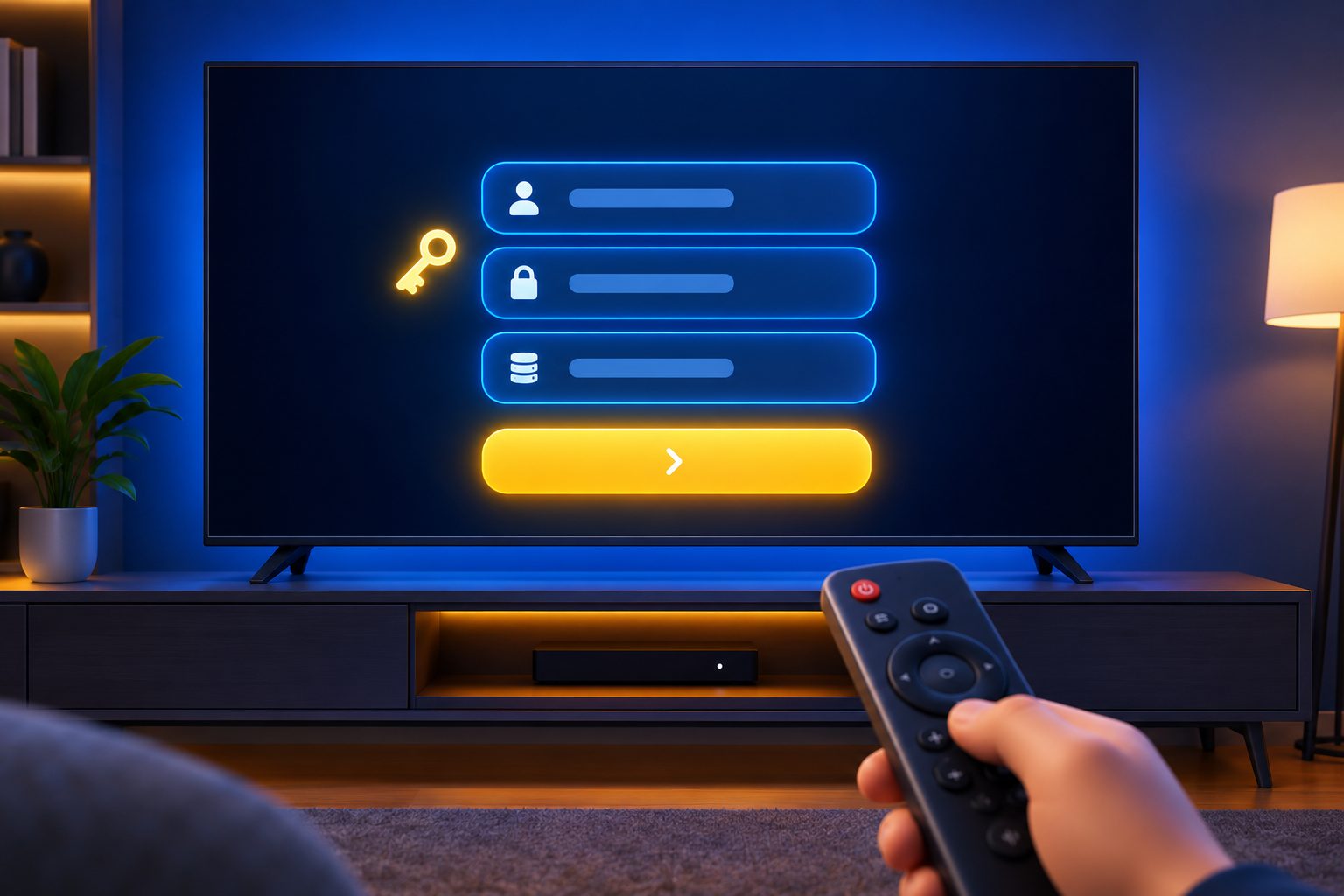
Open the app and pick the login method. If you see the choice, always take “Login with Xtream Codes API” over “Load your playlist / M3U URL”. The Xtream option gives you the on-demand library and the TV guide in one go; the M3U option often gives you live channels and nothing else.
You’ll be asked for three things:
- Any name — this is just a label for the profile. “Living room” is fine.
- Username and password — exactly as your provider sent them, case-sensitive.
- Server URL — usually something like
http://line.example.com:8080. Include thehttp://and the port number; leaving the port off is the single most common typo.
Typing this with a remote is genuinely the worst part of the process. Two shortcuts: most TV apps let you pair a phone as a keyboard, and on Android TV the Google TV app on your phone does this natively. On Samsung and LG you’re entering the playlist on a website from your phone anyway, so it barely comes up.
On the Samsung/LG route, the sequence is slightly different: you go to the app developer’s site on your phone, enter the MAC address the television showed you, paste in your M3U playlist URL, save, and then restart the app on the TV. It will pull the list down on its own.
Step 5 — Let it load, then set up the guide
The first load takes one to three minutes. A big line-up is a lot of data — ours is 100,000+ live channels and 290,000+ films and series — and the app is downloading the whole index plus a week of programme data. If it looks frozen, give it two minutes before touching anything.
If you logged in with Xtream Codes, the EPG arrives on its own. If you used an M3U link and the guide is empty, you’ll need to paste the separate EPG / XMLTV URL into the app’s settings — ask your provider for it if you weren’t sent one. After adding it, force a refresh and restart the app; a blank guide that’s been given a valid URL almost always just needs the restart.
While you’re in there, do two small things that make the TV much nicer to live with: set your favourites, so the twenty channels you actually watch sit at the top instead of scrolling through thousands, and set the app to auto-start on boot if the option exists. That second one is what makes a Smart TV feel like a cable box again — turn it on, and you’re on live TV.
Step 6 — Start watching (and check the right things)
Open Live TV, choose a category, press play. If it works, don’t stop there — spend five minutes checking the things that actually decide whether you keep the service:
- Open a live sports channel at peak time. Anything plays smoothly on a Tuesday morning.
- Check that your local channels are present, not just the national networks.
- Open the EPG and confirm it’s populated and accurate for a couple of days ahead.
- Play something from the on-demand library — it uses a different part of the infrastructure than live TV.
- If your household needs it, check a second stream on another screen at the same time.
AI illustration (see prompt)
Troubleshooting: the five things that actually go wrong
1. It buffers on the TV but was fine on my phone
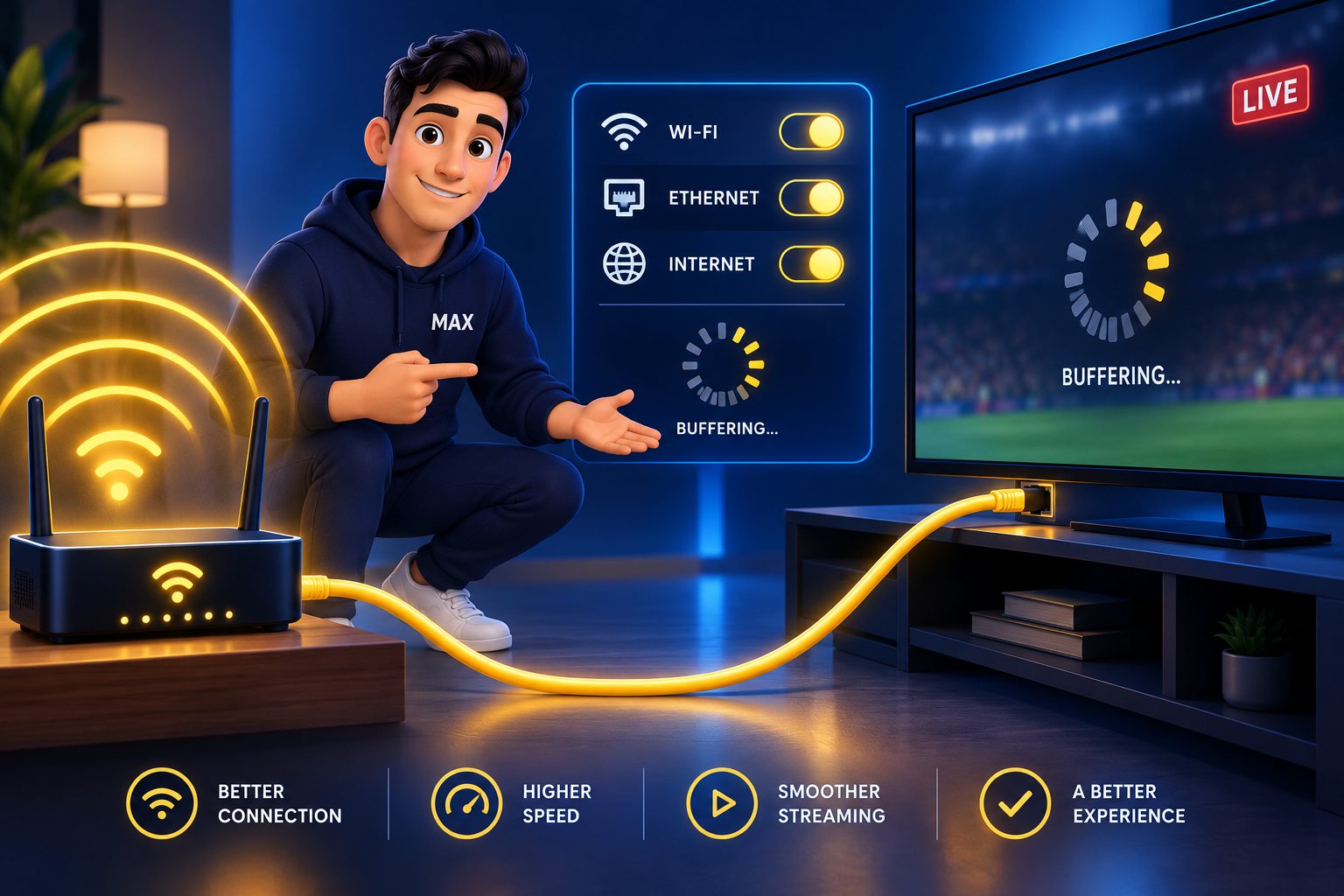
This is the most common complaint and it’s almost always the network, not the stream. Your phone was probably on 5 GHz Wi-Fi or mobile data, close to the router; the television is on 2.4 GHz, further away, behind a cabinet. Connect an Ethernet cable, or move the TV to the 5 GHz network. If neither is possible, open the app’s settings and lower the buffer size — counter-intuitive, but a shorter buffer often recovers faster on a weak link.
2. Some channels play, others show a black screen
If most of the line-up works and a handful don’t, that’s a source-side issue on those specific channels, not your setup — report them to support and they’re usually fixed the same day. If nothing plays, it’s the login or the subscription, not the app.
3. The picture stutters only in the evening
Congestion, either on your own line or on an oversold provider. Run a speed test at 8pm and compare it with midday. If your line is fine at peak and the stream still stutters, the provider is the problem — this is exactly what a one-month trial is for.
4. The app crashes or is painfully slow to navigate
Usually an ageing television rather than the app. Built-in TV platforms have modest processors and get slower as apps get heavier. Clear the app’s cache, remove apps you don’t use, and restart the set properly — power off at the wall for a minute, not standby. If it’s still sluggish, this is the point where a streaming stick pays for itself.
5. The audio and video drift out of sync
Look for a decoder setting in the app — switching between hardware and software decoding fixes this in most cases. If your TV is passing audio to a soundbar or receiver over HDMI ARC, try the TV speakers briefly to see whether the drift is coming from the audio chain instead.
When to skip all of this and use a streaming stick
Being honest about the trade-off: the apps built into a television are convenient, but they are never as good as a dedicated device. TV platforms are slower, get fewer updates, offer fewer player apps, and Samsung and LG sets charge that activation fee on top.
Buy a Firestick or an Android TV box — around $50 once — if any of the following is true: your television is more than four years old, its store doesn’t have a usable IPTV app, the interface is already sluggish with the apps you have, or you want TiviMate and a properly TV-shaped guide. Setup is the same six steps, it takes about ten minutes, and our Firestick guide walks through it screen by screen.
If your TV is recent and its apps feel quick, don’t spend the money. Install the player, log in, and you’re done.
AI illustration (see prompt)
Other IPTV providers worth shortlisting
The app is free and identical everywhere, which means the only thing you’re really choosing is the subscription behind it — and that’s worth testing rather than guessing. The happiest customers shortlist two or three services, take the cheapest plan on each, and run them on the same television for a week. Alongside ipplaytv, these are established providers worth putting on that list:
- KiloTV — a long-running provider with a broad international line-up; useful as a second opinion on peak-time stability.
- ImaxIPTV — a large channel and VOD catalogue with straightforward pricing, and it runs on the same player apps, so trying it costs a few minutes.
- Zyminex — strong device compatibility across Firestick, Smart TV and Android, with a short plan you can test before committing.
Because every one of them logs into the same apps, swapping between them takes about thirty seconds. There’s no reason to commit to a year on the strength of a website.
The bottom line
Installing IPTV on a Smart TV is a genuinely small job: open the store, install a player, type in three fields, wait two minutes. The only decisions that matter are choosing Xtream Codes over an M3U link where you can, and getting the television onto a wired or 5 GHz connection before you start.
If the set is old and slow, don’t fight it — a $50 stick solves it permanently and you’ll use the same six steps anyway. And whichever route you take, test the service properly on a single month before paying for a year: a live sports channel at peak time, your local channels, the guide and the on-demand library. That’s the whole test, and it takes one evening.
Frequently asked questions
Yes. Both Samsung’s Tizen store and LG’s Content Store carry IPTV player apps such as Smart IPTV and Set IPTV. You install the player from the television’s own store, then add your playlist using the MAC address the app displays. No computer, no sideloading and no modification of the TV is required.
On Android TV and Google TV, IPTV Smarters Pro is the usual first choice — it supports Xtream Codes login and loads the EPG automatically, and TiviMate is the popular paid alternative. On Samsung Tizen and LG webOS, Smart IPTV and Set IPTV are the most widely used, though both ask for a small one-off activation fee paid to the app developer. Any player that accepts an Xtream Codes or M3U login works with a standard subscription.
Almost always Wi-Fi. Televisions usually sit further from the router than a phone does, and many sets only support the slower 2.4 GHz band. Connect the TV with an Ethernet cable, or move it onto the 5 GHz network, and most buffering disappears. TV apps are also less powerful than phone apps, so lowering the buffer size or switching the decoder in the app’s settings often helps too.
Not necessarily, but it often helps. A Firestick or Android box has a faster processor than the platform built into most televisions, more player apps available, and it keeps getting updates for longer. If your TV is more than about four years old, a $50 stick will usually give a noticeably smoother experience than the set’s own apps.
If you logged in with Xtream Codes details, the EPG downloads automatically and appears within a few minutes. If you used an M3U link, you usually need to paste the separate EPG or XMLTV URL into the app’s settings — ask your provider for it if you weren’t sent one. If the guide is still blank after that, force a refresh and restart the app.
No. You’re installing an ordinary app from the manufacturer’s own store and typing a login into it. Nothing about the television is modified, rooted or jailbroken, and the app can be uninstalled at any time like any other.
That depends on how many simultaneous connections your plan includes. A single connection means one stream at a time. On ipplaytv the 1, 3 and 6-month plans are single-screen, while the 1 year plan allows 2 at once, 2 years 3 and lifetime 5. If two rooms need to watch different channels together, pick the plan before you buy rather than after — it’s a simple thing to arrange up front and an annoying one to discover mid-match.
Plug a streaming device into an HDMI port. A Firestick, an Android TV box, an Apple TV or even a games console turns any television with HDMI into a fully capable IPTV screen, and the setup is the same six steps described above.
Keep reading
How the TV guide works and how to fix it.
How many screens one subscription covers, and how to choose.
Every screen in the app — Xtream login, EPG, favourites and buffering fixes.
The ten-minute setup for when your TV’s own apps aren’t up to it.
What each line of the activation email does — and how to fix a rejected login.
What the subscription includes, what it costs and where it falls short.
How the 24-hour test works, and what to check while it runs.
Which player to install on each device — and why there is no branded app.
Related reading
Why the box is the account, where the portal URL goes, and how to fix every…
Premier League coverage, Freeview channels, fair pricing in pounds and a ten-minute Firestick setup.