Almost every MAG box IPTV setup starts with the same confusing thirty seconds. You unbox a small black device, plug it into the television, and instead of an app store you get a bare screen asking for a “portal”. Meanwhile the seller you bought your subscription from has sent you a message that reads, in full: send me your MAC address.
None of that resembles installing an app on a Firestick, and it isn’t an accident. Portal boxes come from an older, more industrial branch of this world — the one built for operators handing out thousands of identical devices to subscribers. Once that single design decision clicks into place, every strange thing about these boxes makes sense and the whole setup takes about ten minutes.
So we’ll take it in that order: the concept first, then the wiring, then the portal, then everything that can go wrong on the portal screen.
Quick takeaways
- The box is the account. The MAC address on the underside sticker is what your subscription is registered to — there’s no username to type.
- The portal URL tells the box which server to ask. One wrong character gives the same error as a completely wrong address.
- Use Ethernet. The wireless radios in these boxes are the weakest part of them.
- Set the time zone correctly at first boot, or your whole TV guide will be hours out and look broken.
- If the box dies, the provider re-registers the new MAC. Any real service does this in minutes.
- Buying new in 2026? A streaming stick is usually the better call — unless you specifically want a set-and-forget appliance.
The one thing that makes a MAG different: the box is the account
On a phone or a streaming stick, you install a player and type in a username and password. Your account lives in those credentials, and you can carry them to any device you like — which is exactly what our guide to IPTV usernames and passwords is about.
A portal box doesn’t work that way. The device has a MAC address printed on a sticker underneath — twelve characters, very often beginning 00:1A:79 — and on a portal service that address is your subscription. The provider registers it on their server. When the box boots, it announces its MAC to whatever portal address you configured, the server recognises it, and it sends back your channel list. There is no login screen because the hardware itself is the login.
Three consequences follow, and all three surprise people:
- You can’t move the subscription by typing credentials into a phone. The line is bound to that box. Some providers will issue separate playlist credentials alongside it if you ask, but it isn’t automatic.
- If the box dies, the line has to be re-registered against the new MAC. This is completely normal and any real provider does it while you wait. A seller who refuses or goes quiet at this point has answered a question you hadn’t asked yet.
- Your MAC address is worth protecting. Don’t post it in a public forum, a review or a screenshot. It’s the identifier your service is keyed to.
The software running the whole arrangement is called middleware: server-side software that manages subscribers, channel line-ups and the interface the box draws on your screen. You don’t need to understand it to set the box up, but knowing it exists explains why the interface looks identical on boxes from three different sellers.
Which box are you actually holding?
“MAG” is a specific product family, but sellers use the word loosely for anything that boots into a portal screen. Work out which category yours falls into before you configure it, because the menu names differ.
| Category | What it is | What to expect |
|---|---|---|
| Older MAG models | The long-running Linux-based generation | Reliable on standard channels; limited on modern codecs and 4K |
| Current MAG models | Newer hardware, some with a dual-boot Android side | Handles high bitrates and 4K far better; more settings to get wrong |
| Formuler and similar | Different manufacturer, portal-capable, own interface | Same portal concept, different menu names |
| Generic “MAG-compatible” clones | Cheap boxes sold as equivalent | Highly variable; firmware often abandoned. Treat with caution |
If your box has an Android side as well as the portal side, you effectively own two devices in one case. The Android side lets you install ordinary player apps and log in with standard credentials — our IPTV Smarters Pro guide covers that route step by step. The portal side does the MAC-registered thing described above. Knowing which one you’re booted into prevents a great deal of confusion.
AI illustration (see prompt)
Before you plug anything in
- Find the MAC sticker and photograph it. You’ll need to send it to your provider, and you’ll want it again if you ever have to prove which device is registered.
- Get the portal address in writing. Not over a phone call, not from memory. Ask for the exact URL as text so you can copy it character for character.
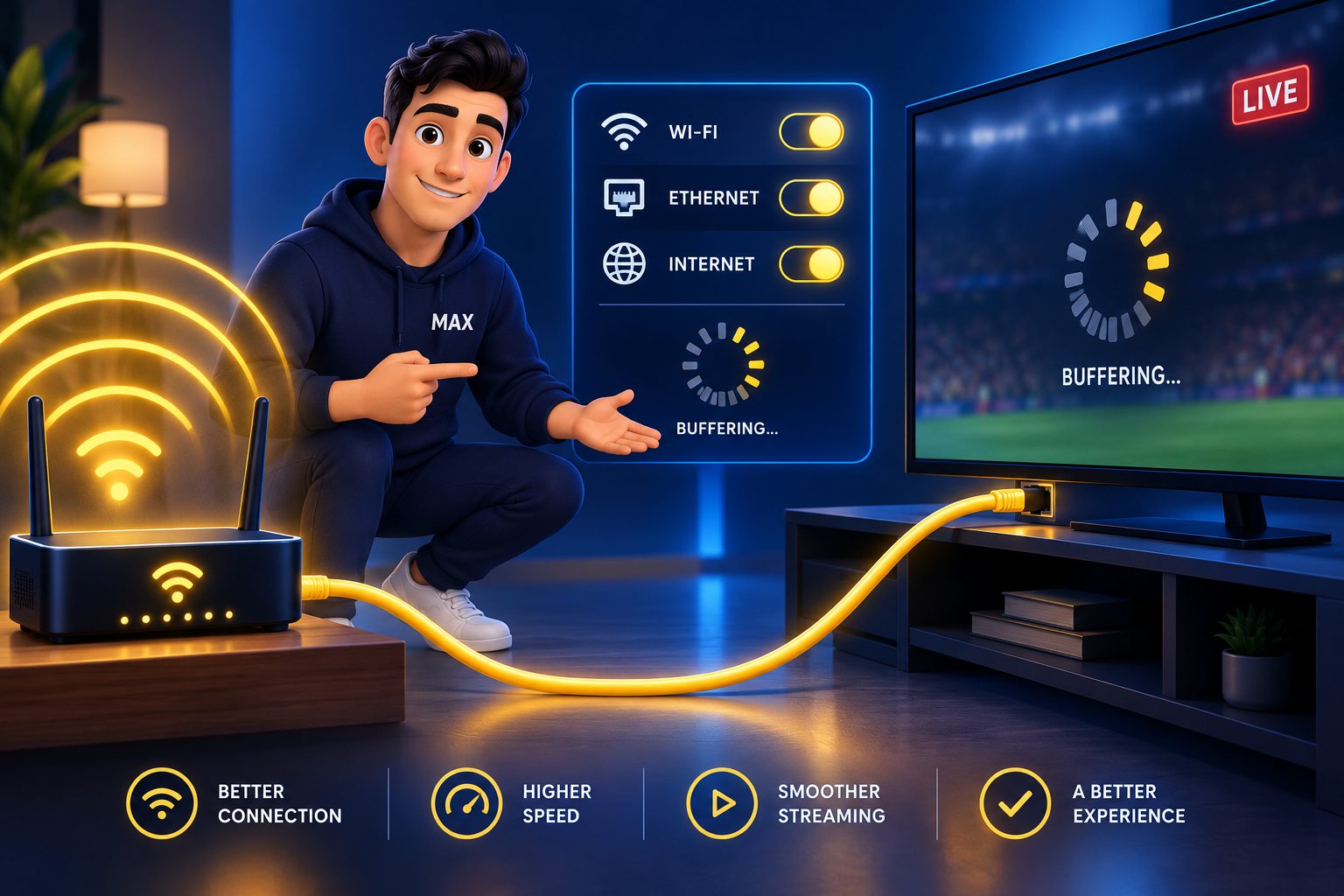
- Use Ethernet if you possibly can. These boxes have modest wireless radios, and a cable eliminates the most common cause of stuttering before it ever happens.
- Check your HDMI lead and input. A working cable into a free port, and note which input number it is.
- Fresh batteries in the remote. The portal interface is entirely remote-driven, and typing a long URL with a weak remote is genuinely painful.
One more thing worth deciding now: where the box will live. It wants airflow and it wants to be near the router. A device stuffed inside a closed cabinet behind a soundbar will run hot and drop its connection, and you’ll spend an hour blaming the provider for it.
First boot, step by step
Power on with the HDMI and network cables already connected. The box runs through a short initial sequence.
- Language and time zone. Set both correctly. The time zone is not cosmetic — a wrong one shifts the entire programme guide by hours and makes every listing look broken.
- Network. Choose wired if you connected Ethernet, otherwise pick your Wi-Fi network and enter the password. Wait until the box confirms it has an address before continuing.
- Video output. Pick a mode your television actually supports. Setting one it can’t display gives you a black screen and a small panic; most boxes revert on their own after a few seconds if you don’t confirm.
- Let it check for firmware. If an update is offered, take it before configuring the portal, because an update can reset settings you just entered.
When that’s done you should be sitting on the default portal screen, showing an error or an empty page. That’s expected — you haven’t told it where to look yet.
Entering the portal URL
This is the part everyone searches for. Menu names vary a little between models and firmware versions, but the path is consistently something like this:
- From the main screen, open Settings (the gear icon on most models, or the Settings tile on the system menu).
- Go to System Settings.
- Choose Servers, then Portals.
- In Portal 1 Name, type anything you like — your provider’s name is sensible. This field is purely a label for you.
- In Portal 1 URL, type the exact address your provider gave you. Every character counts: the protocol at the front, any port number, the trailing path.
- Save, then reboot the portal. Many models offer this directly in the system menu; a full power cycle does the same job.
If your provider gave you a second address as a backup, put it in Portal 2. The box falls back to it when the first is unreachable, which is genuinely useful during server maintenance.
After the reboot the box contacts the portal, the server checks your MAC against its subscriber list, and — assuming the provider has registered you — the channel list downloads. The first load can take a minute or two on a large line-up. Let it finish before deciding anything is wrong.
AI illustration (see prompt)
When the portal won’t load
Nearly every failure at this stage falls into one of these patterns. Work down the table rather than guessing.
| What you see | Almost always means | What to do |
|---|---|---|
| “Portal not found”, or a blank portal screen | URL typed wrongly, or the address changed | Re-enter character by character; ask the provider to resend the current address |
| Loading bar sticks at a percentage forever | Server unreachable, or the box has no working internet | Test the network in settings; try the backup portal; reboot the router |
| Message about the MAC being blocked or not authorised | MAC not registered, or the subscription expired | Send the provider the MAC from the sticker and ask them to confirm it |
| Channel list loads but nothing plays | Portal is fine, streams aren’t reaching you | Check the wired connection and speed; test another category before reporting |
| Guide is full but every programme is at the wrong time | Time zone set incorrectly at first boot | Change the zone in settings and reboot |
| Everything worked, then stopped overnight | Renewal date passed, or the provider migrated servers | Confirm the subscription status, then ask whether the portal address changed |
Two habits make troubleshooting far quicker. First, always establish whether the problem is the portal (nothing loads at all) or the streams (the interface works, video doesn’t) — they have entirely different causes and mixing them up wastes evenings. Second, test at a quiet time of day as well as at peak. A box that’s perfect at two in the afternoon and falls apart at nine in the evening is describing a congestion problem at the provider, not a configuration problem at your end.
The picture and sound settings worth changing
Once channels are loading, four settings decide whether the result looks like proper television or like something is subtly off. All of them live in the system settings menu.
- Video output mode. Match it to your television rather than picking the highest number available. Forcing an output the panel can’t handle produces flicker, a black screen, or a picture that drops out every few minutes. If in doubt, step down one level and see whether the instability goes away.
- Aspect ratio. Set it to automatic if the option exists. A fixed ratio makes standard-definition channels look stretched, and people then assume the provider is sending a bad feed when the box is simply distorting it.
- Audio output. If the box feeds a soundbar or receiver, choose the passthrough option so multichannel audio reaches the amplifier intact. If it goes straight into the television, leave it on stereo — passthrough into a TV that can’t decode it is a classic cause of silence on some channels and not others.
- Buffer size. Some firmware exposes a buffering value. Increasing it slightly trades a longer channel-change delay for steadier playback, which is a good bargain on a connection that wobbles at peak. Leave it alone if everything is already smooth.
Change one at a time and watch a busy channel for a few minutes after each. Changing four settings at once and then trying to work out which one helped is how an evening disappears.
Running a portal box alongside other devices
Plenty of households end up with a portal box on the main television and a stick or a phone elsewhere. That’s a sensible arrangement — provided you’re clear about what’s shared and what isn’t.
The subscription’s simultaneous-connection limit is shared across everything. Two screens playing at once counts as two connections whether they’re two MAG boxes, two sticks, or one of each. What is not shared is the login method: the MAG authenticates by MAC, while the other devices need playlist or Xtream credentials from the same provider. Ask for both when you sign up rather than discovering the gap later.
Favourites, recordings and watch positions don’t sync between a portal box and an app either. They’re separate systems that happen to point at the same channels, so set your favourites up properly on the device you actually use most and accept that the others start from the full list.
Buying a MAG second-hand — read this first
These boxes turn up cheaply on resale sites, and plenty of those listings are fine. Several are not, and the failure modes are specific enough to be worth naming.
The box may be locked to someone else’s portal. Some operators ship devices that will only talk to their own server and can’t be repointed. It will look perfect and be useless to you.
Cloned MAC addresses exist. Cheap clones sometimes ship with duplicated addresses, which causes bizarre intermittent behaviour when two boxes claiming the same identity hit the same server. That’s very hard to diagnose from the sofa and impossible to fix.
Firmware may be abandoned. Older models and no-name clones stop receiving updates. That’s not only a features question — eventually it becomes a compatibility question when providers move to newer streaming formats.
Be especially careful of any box advertised as coming “with channels included”. A device sold with a service pre-loaded is a bundle from a seller you haven’t vetted, and when they vanish so does everything on it. Hardware and subscription should be two separate decisions. If you are buying used, ask the seller for a photo of the underside sticker, a photo of the settings screen showing the firmware version, and confirmation that the portal can be changed. A seller who can’t answer those three questions isn’t worth the discount.
AI illustration (see prompt)
Is a MAG still the right choice in 2026?
Honest answer: for most new buyers, no — but for some, absolutely.
The case for a portal box is that it is simple and stable. It does one thing. There’s no app store to browse, no home screen full of promoted content, no update that rearranges the interface overnight. Hand one to a household member who dislikes technology and they’ll be fine, because it behaves like a television. For an older relative’s living room, that’s a genuine advantage over a stick.
The case against is flexibility. The portal model ties you to one provider’s server and one device. Modern streaming sticks and Android boxes let you install whichever player suits you, keep credentials that travel between devices, run several services side by side, and receive updates for years — which is why our Firestick guide and Smart TV guide are where we point most newcomers.
The realistic verdict: if you already own a MAG and it works, keep it and enjoy the simplicity. If you’re buying from scratch and you value choice, buy something you can install apps on. If you specifically want a set-and-forget appliance for someone who will never touch a setting, a portal box remains a perfectly reasonable purchase.
Keeping it running
Three small pieces of maintenance prevent most long-term irritation.
- Take firmware updates when offered — but not five minutes before something you want to watch. They occasionally reset display or network preferences.
- Reserve the box an address on your router. Assigning a fixed local IP in the router’s DHCP settings stops the box picking up a different address after every power cut, which makes any future diagnosis far easier.
- Use standby rather than pulling the plug. Frequent hard power cuts are the most common cause of corrupted settings on these devices, and a corrupted portal configuration means typing that long URL again.
And keep a note somewhere — a photo in your phone is fine — with the MAC address, the portal URL and the renewal date. Those three facts answer about ninety per cent of the questions you’ll ever need to ask your provider.
Other IPTV providers worth shortlisting
A portal box makes switching slower than an app does, which is exactly why the service behind it deserves more scrutiny, not less. Test a short plan before you commit to a year, and ask up front whether they’ll issue playlist credentials alongside the MAC registration. Alongside ipplaytv, these are established names worth putting on the list:
- KiloTV — a long-running provider with a broad international line-up; a useful second opinion on peak-time stability.
- ImaxIPTV — a large channel and VOD catalogue with straightforward pricing.
- Zyminex — strong device compatibility across Firestick, Smart TV and Android, with a short plan you can test first.
The bottom line
A MAG box setup is short once the concept clicks: the MAC address on the sticker is your account, the portal URL tells the box which server to ask, and Ethernet keeps it steady. Send your provider the MAC, type the address exactly as given, set the time zone properly, reboot, and you’re watching.
Where it goes wrong is almost never the box itself — it’s a mistyped URL, an unregistered MAC, or a line that can’t hold up at peak time. The first two you can fix in five minutes. The third is a question about the service rather than the hardware, and the only honest way to answer it is to watch a busy evening on your own connection.
Frequently asked questions
Because on a portal service the MAC address is the account. The provider registers it on their server so the box is recognised the moment it connects, which is why there’s no login screen to type into. It also explains why the same subscription can’t simply be entered on a phone: the line is bound to that piece of hardware.
It’s the web address of the server holding your channel list and drawing the interface on screen. The box sends its MAC address there on every boot and the server answers with your line-up. It isn’t a username and it isn’t a playlist link — and one wrong character produces exactly the same error as a completely wrong address.
Re-enter the address character by character, including the protocol at the front and any port number, and ask your provider to confirm the current address hasn’t changed. If the address is right, check the box actually has a working internet connection in the network settings, and try the backup portal if you were given one.
Only if the provider issues separate playlist or Xtream credentials alongside the MAC registration. Many will on request, and it’s worth asking before you buy rather than discovering the gap on a Saturday night. Your plan’s simultaneous-connection limit still applies across everything.
Contact the provider with the new device’s MAC address and ask them to move your registration. Any legitimate service does this routinely and within minutes. A seller who refuses, stalls or disappears at that point has told you something important about the service.
Yes, noticeably. The wireless radios in portal boxes are modest compared with a modern phone or streaming stick, and the difference shows up exactly when it matters — on a busy evening. If you take one recommendation from this page, take a cable to the router.
Almost always the time zone set during first boot. A wrong zone shifts the whole guide by hours and makes every listing look broken. Fix it in the system settings and reboot. If the guide is genuinely empty rather than misaligned, the portal isn’t supplying guide data for those channels and that’s a question for your provider.
If you already own one and it works, keep it — it’s simple and stable. If you’re buying from scratch and you value flexibility, a streaming stick or Android box is the better purchase: any player you like, credentials that move between devices, and updates for years. A portal box still makes sense as a set-and-forget appliance for someone who’ll never touch a setting.
Keep reading
How the TV guide works and how to fix it.
The get.php link, piece by piece.
What the server URL, M3U link and EPG link each do — and how to fix a rejected login.
The app-based alternative, set up in about ten minutes.
What the subscription includes, what it costs and where it falls short.
How the 24-hour test works, and what to check while it runs.
Which player to install on each device — and why there is no branded app.
Related reading
Xtream Codes login, EPG, buffering fixes and the hidden features — every device covered.
Hockey coverage, CBC/CTV/Global locals, French channels and fair pricing in Canadian dollars.